





For personal, non-commercial projects only
About
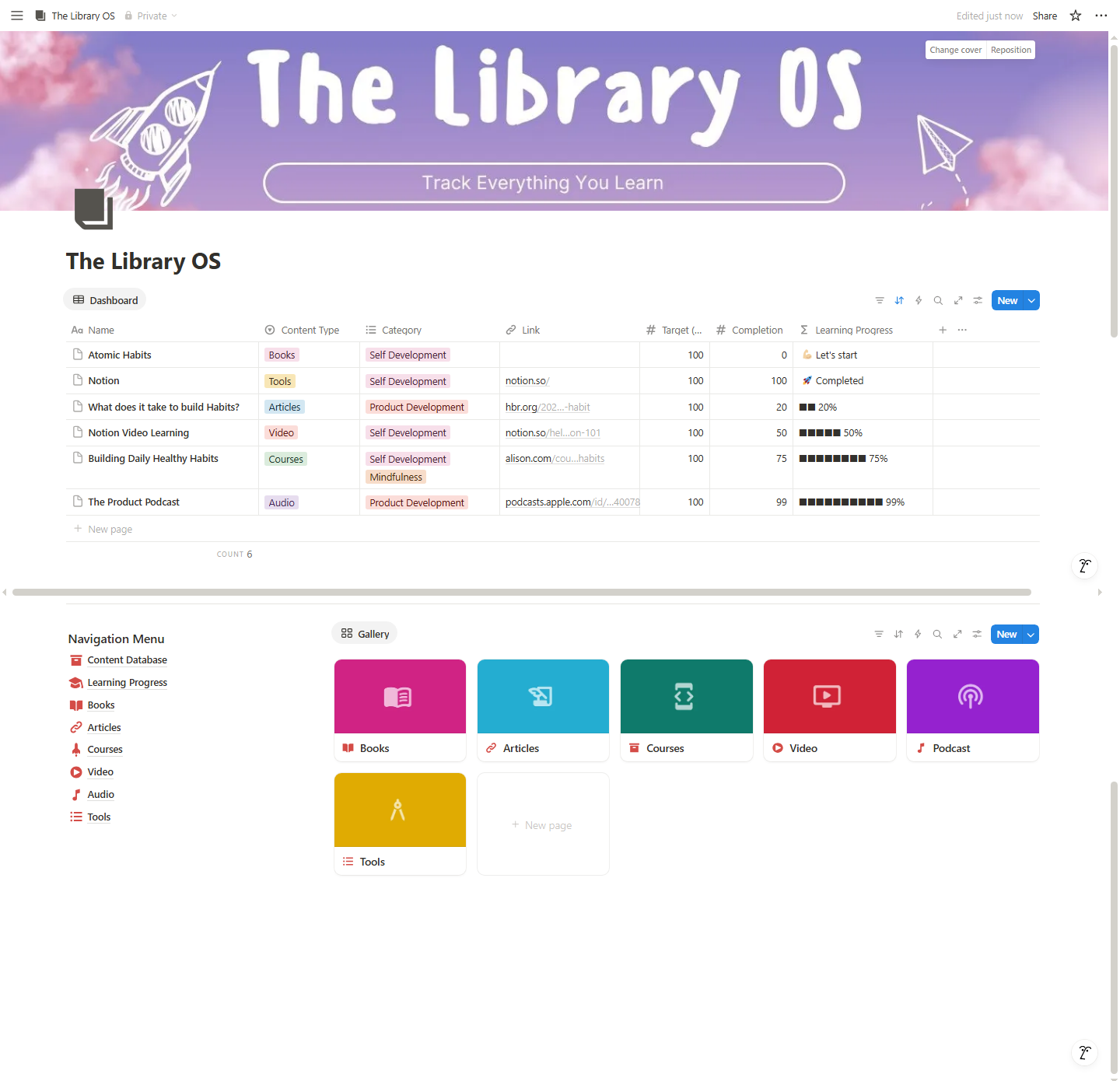
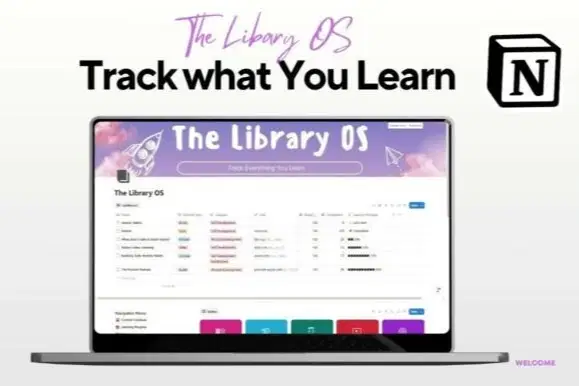
Library OS is a powerful Notion template designed to help you organize, track, and retain everything you consume — books, articles, podcasts, courses, videos, and tools. Whether you’re a lifelong learner, student, or creator, this central hub gives you the structure to stay on top of your personal development and track learning progress with ease.
Categorize by content type, topic, and completion status — and watch your knowledge stack grow.
✅ Features:
📚 Content library with tags for books, courses, tools, podcasts, videos, & articles
✅ Track completion % & progress across all resources
🗂️ Custom category system (e.g., self-development, productivity, mindset)
🔗 Add resource links directly
🎯 Navigation dashboard with learning overview
🌈 Clean, colorful cards for fast access
🧠 Perfect for building your second brain
Shop confidently with Shuppi
If your download isn’t what was promised, we’ll make it right. Eligible purchases can be refunded within fourteen calendar days when listings mislead, files fail, or duplicate checkouts happen.
- Listings must match what you receive—no surprises.
- Corrupted files or technical issues? Request a quick fix or refund.
- Duplicate purchases are covered without the hassle.
Product Specs
Tags
Frequently Asked Questions
You May Also Like

The Ultimate Notion Template Bundle: 20 Notion Templates for Life & Work
 Yanis’s Notion
Skincare Tracker Notion Template
 Mohammed atia
Notion Habit Tracker & Daily Planner - Notion Template
Yanis’s Notion
Notion Project and Task Tracker -Notion Template
Yanis’s Notion
Life OS notion template
Mohammed atia
Travel & Adventure Planning Hub - Notion Template for Travel Planning and Trip Organizer
 Plan it. Do it. Love it.